



First, check that your Android device is compatible with eSIMs and is not locked by any specific carrier.
Reminders
- Ensure you have a strong internet connection before installation. A strong WiFi network or a good 4G connection is recommended.
- Each eSIM can only be installed once. Once activation has started on a device, the QR code/activation code will no longer be accessible.
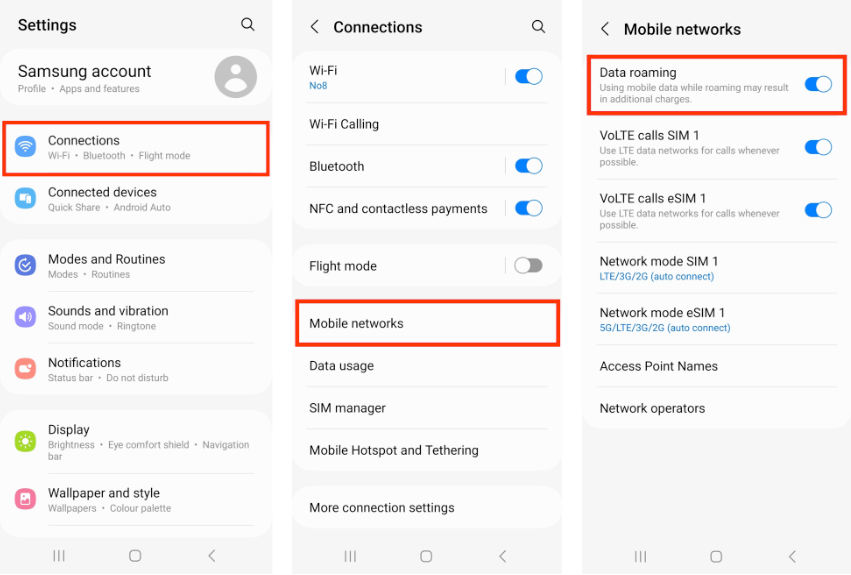
- Data roaming must be enabled for the eSIM to work.
- Validity time: You can activate the eSIM before heading to any of the supported countries, but its validity time won’t begin until you turn it on within one of those countries.
Installation using QR code
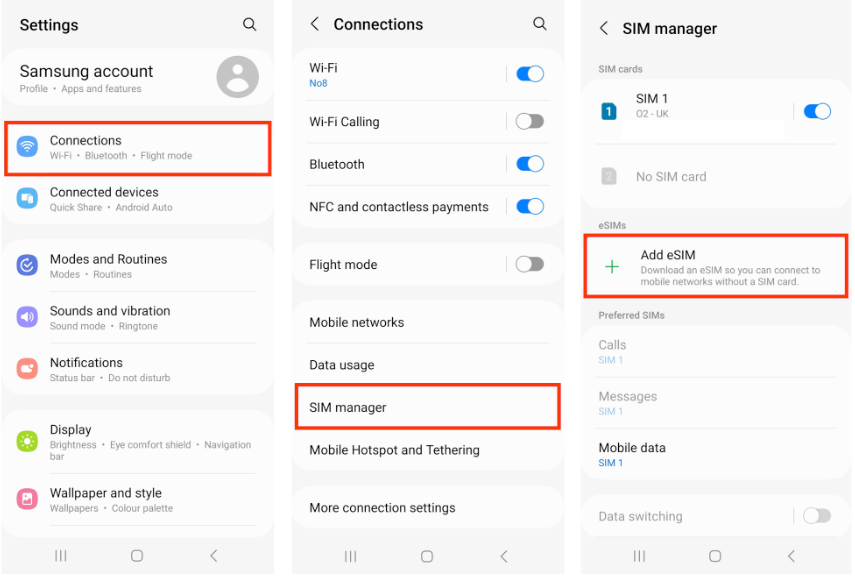
- Go to Settings → Connections or Network & Internet → SIMs or SIM Manager → Add eSIM or Download a SIM instead → Scan QR code from Service provider → scan the QR code.
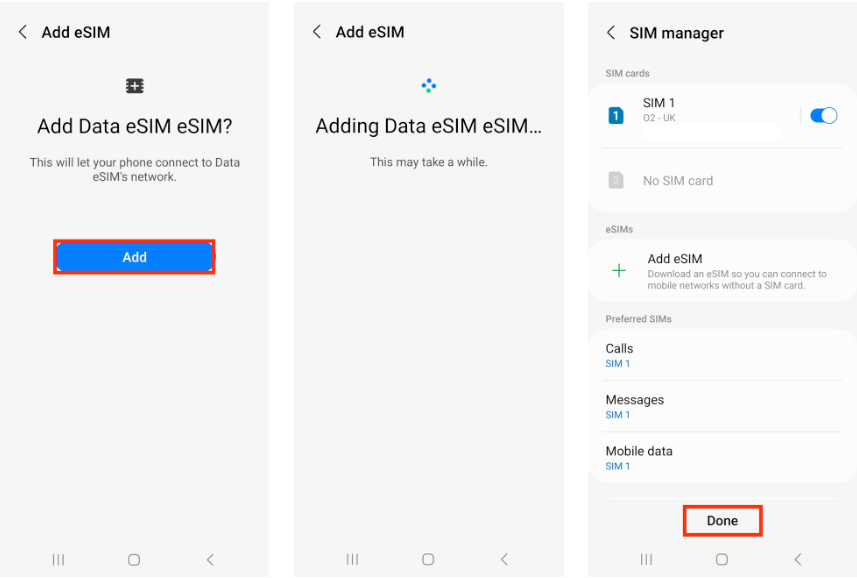
- If prompted, tap Add and allow up to 10 minutes for the eSIM to activate, then tap Done
⚠️ IMPORTANT!
Do NOT close the page or the installation will stop.
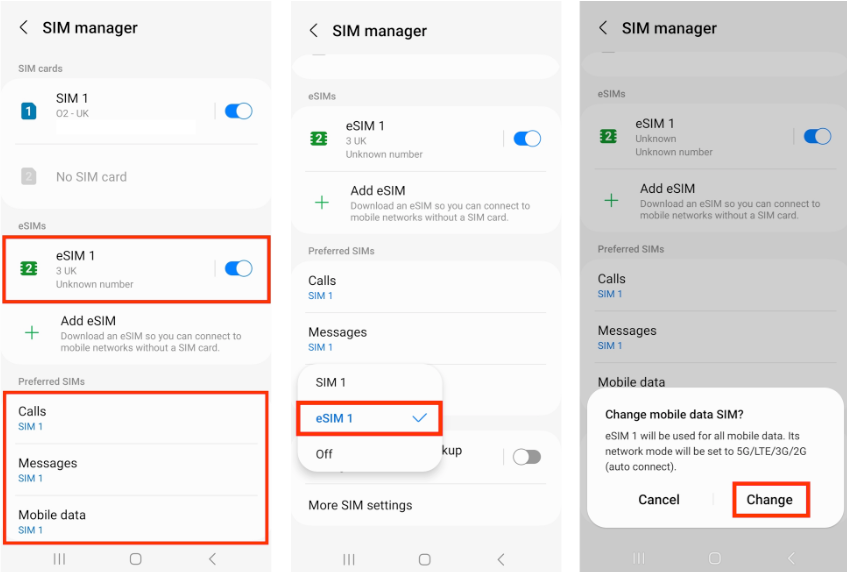
3. Leave Calls and Messages set to your original primary SIM, as the eSIM you purchased does not come with a phone number. Tap Mobile Data → select the Bitrefill eSIM → tap Change
4. Enable roaming by going to Settings → Connections → Mobile networks → ensure “Data roaming” is toggled ON
Installation using Activation code (copy-paste method)
- Go to the phone Settings → Connections or Network & Internet → SIMs or SIM Manager → tap Add eSIM or Download a SIM instead → tap Scan QR code from Service provider or click Next → tap Enter activation code and enter the SM-DP+ address followed by the activation code using the correct format.
- Activation code format: You only need to enter the SM-DP+ address and Activation Code. Leave the Confirmation Code blank.
Example – The correct format is 1$SM-DP+address$activation code, so in our case, you would enter: 1$rsp.truphone.com$JQ-1RA5Y7-157UAZP.
- If prompted, tap Add and allow up to 10 minutes for the eSIM to activate, then tap Done.
⚠️ IMPORTANT!
Do NOT close the page or the installation will stop.
- Enable roaming by going to the phone Settings → Connections → Mobile networks, and ensure
Click here for additional information on installing your eSIM on your Android device or here to see a list of compatible devices.